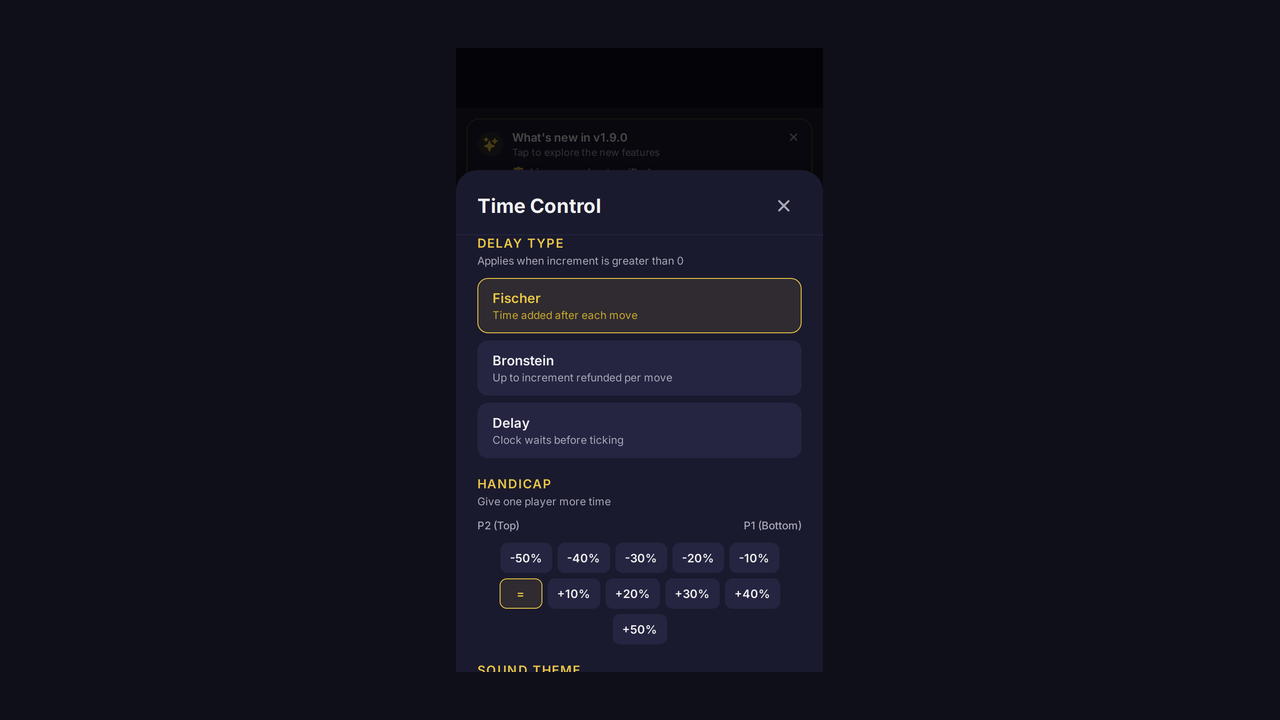
Delay modes: Fischer, Bronstein, Simple Pro
Open the settings panel (gear icon in the centre control bar) and tap Delay Type. Choose between the three FIDE-recognised methods. Fischer increment adds a fixed number of seconds to your clock after every move you make — you can bank time if you move quickly. Bronstein delay refunds up to the increment amount based on how long you actually thought, so you never gain net time over your starting allocation. Simple delay pauses your clock for the delay period before it begins ticking on each move — effectively a free thinking window each turn. Pair any mode with a custom base time and increment in the time control picker. Your last selection is remembered next time you start a game.
Handicap timing Pro
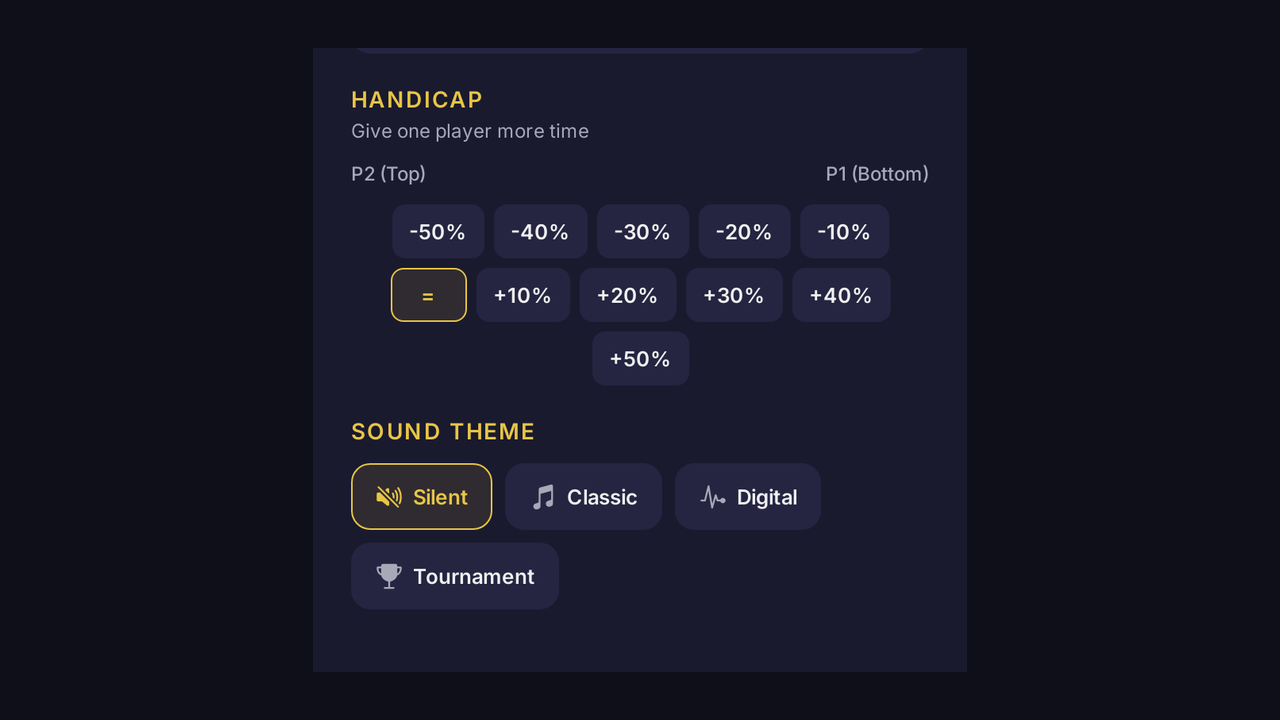
Handicap mode lets two players of different strength share an even chance against the clock. From settings, scroll to Handicap and drag the slider anywhere from −50% to +50%. Positive values give Player 1 (bottom) more time; negative values give Player 2 (top) more. The exact resulting times for both players are previewed live as you move the slider, so a 10-minute base game with +30% becomes 13 minutes vs 7 minutes. Once the game starts, a small percentage badge appears on each clock so spectators understand the asymmetric times. Handicap stacks with any delay mode, so a Bronstein 5+3 game with a +20% handicap is perfectly valid. Reset to 0% any time to return to standard equal timing.
Tournament mode Pro
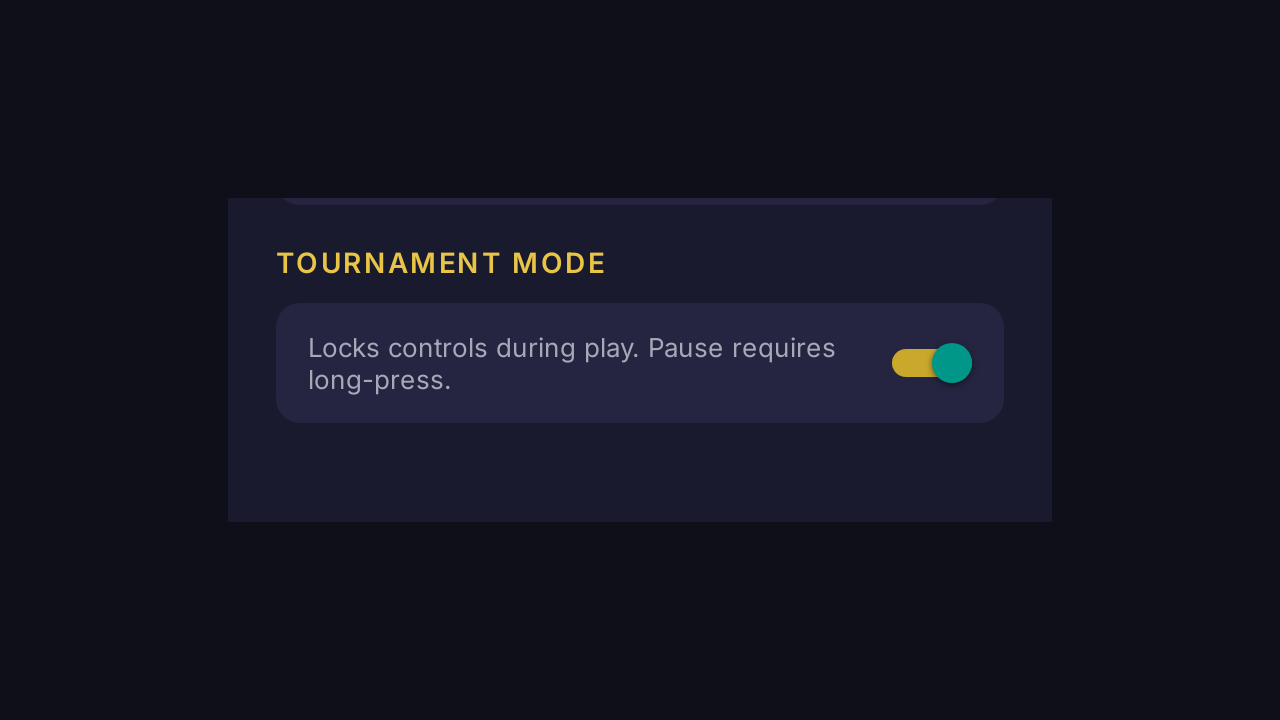
Tournament mode is the same lock-out you get on a real DGT clock — once the game is going, the settings, reset, and quick-pause buttons stop responding to single taps. To enable it, open settings and toggle Tournament Mode on. The setting persists across sessions, so once you turn it on for league night you don't have to reconfigure it next week. While locked, pausing the game requires a deliberate long-press on the pause button followed by a confirmation dialog — this prevents accidental brushes from disrupting a serious game. The new-game and resign actions still work normally with their usual confirmation prompts. Tap-to-switch on each player's zone continues to work as expected throughout.
Illegal move penalty Pro
For blitz games played under strict rules, you can enforce time penalties for illegal moves just like an arbiter would. Enable Illegal Move Penalty in the settings panel and a small gavel button appears in each player's action bar during play. When a player makes an illegal move, tap the gavel on their side: after a quick confirmation, one minute is deducted from their clock — or, if they have a minute or less remaining, their time is halved instead, and a player is never flagged by a penalty alone. Each player's running penalty count is shown as a small badge next to the gavel, and counts reset when you start a new game. The setting is remembered across sessions, so it is always ready for club blitz night.
Session mode (best-of series) Pro
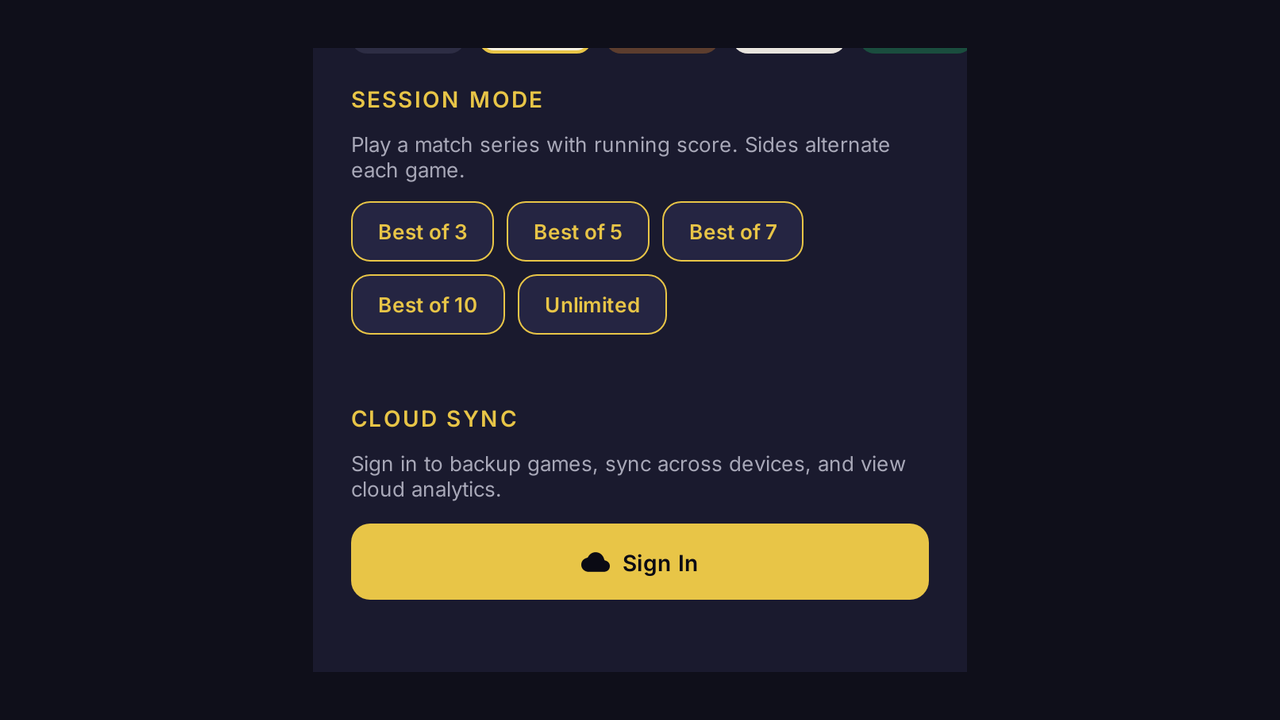
Session mode turns a stack of single games into a proper match. From the settings panel, find Session Mode and pick a series length: best-of-3, 5, 7, 10, or unlimited. The session begins right away and the centre control bar shows a running score. Sides automatically alternate between games so neither player keeps the white pieces all session. After each game finishes, tap Next Game to begin the next leg with the same time control. When the series clinches, a session summary modal lists every game's result, time control, and total elapsed time, with a banner declaring the winner. Want to stop early? An End Session button appears between games for graceful exit.
Spectator view Pro
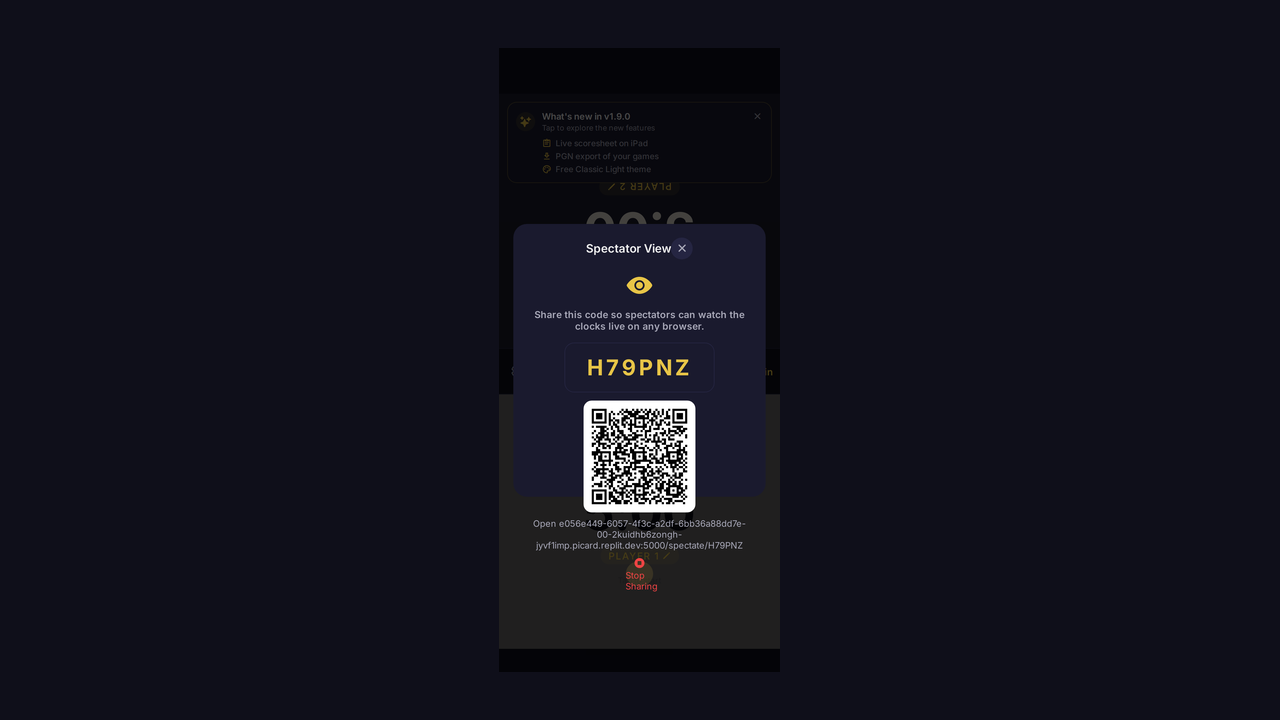
Spectator view lets anyone with a web browser watch your clocks live. While the game is idle or paused, tap the eye icon in the centre control bar. The app generates a six-character code and displays the spectator URL (your domain followed by /spectate/CODE). Share the code or the link with viewers, students, or a streaming overlay — they'll see both clock times update in real time over a WebSocket connection. The eye icon turns gold while a session is active, and tapping it again shows the code or stops sharing. The spectator page is read-only, mobile-friendly, and works in any modern browser without an install. Perfect for coaches, club broadcasts, and casual streams alike.
Cloud sync Pro
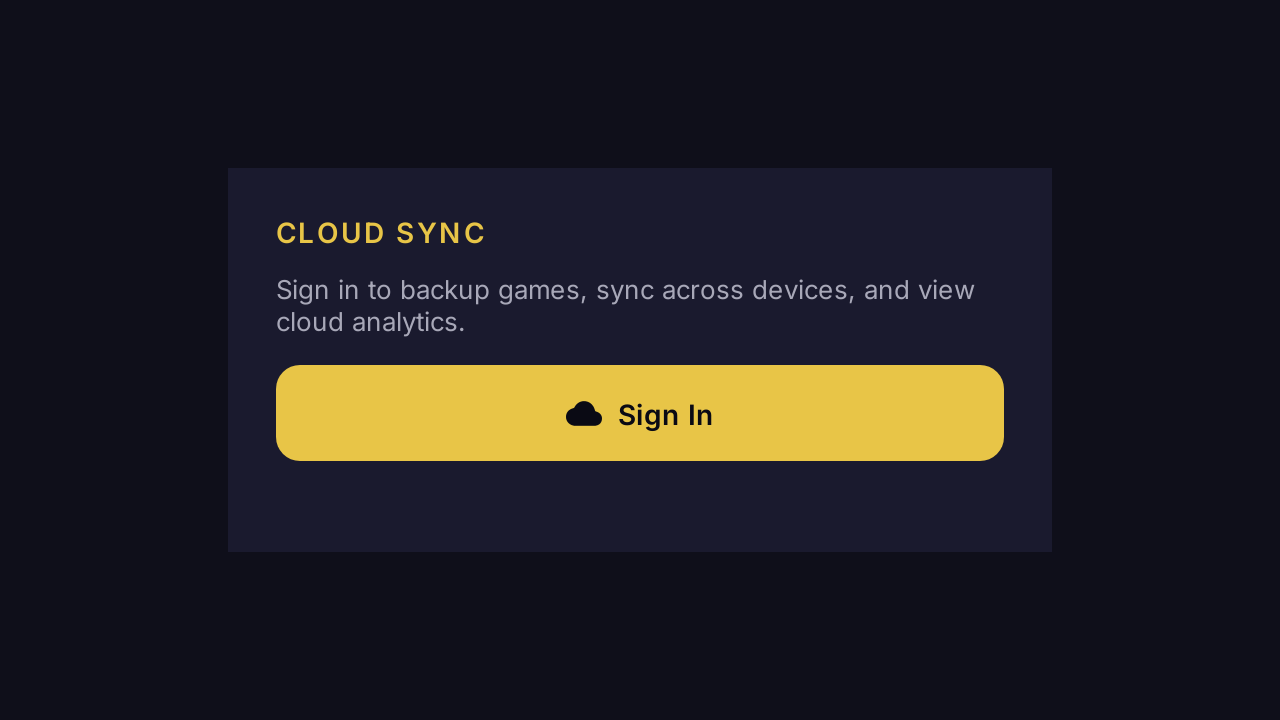
Cloud sync keeps your game history identical across every device you own. Creating an account is free: open settings and tap Sign in with Apple or Sign in with Google — we use only the identity token, never store passwords, and you can stay signed in for 30 days at a time. Cloud backup, cross-device sync, and cloud analytics are part of Pro. Once signed in, every finished game is queued for upload, and pending uploads are shown as a small cloud badge in the control bar. Sync is offline-first: if you finish a game on the train, it queues locally and uploads automatically the next time you have a connection. Open the app on a new iPhone or iPad, sign in, and your full history appears within seconds. Use the manual Sync Now button in settings to force a refresh whenever you want.
Live scoresheet & PGN export Pro
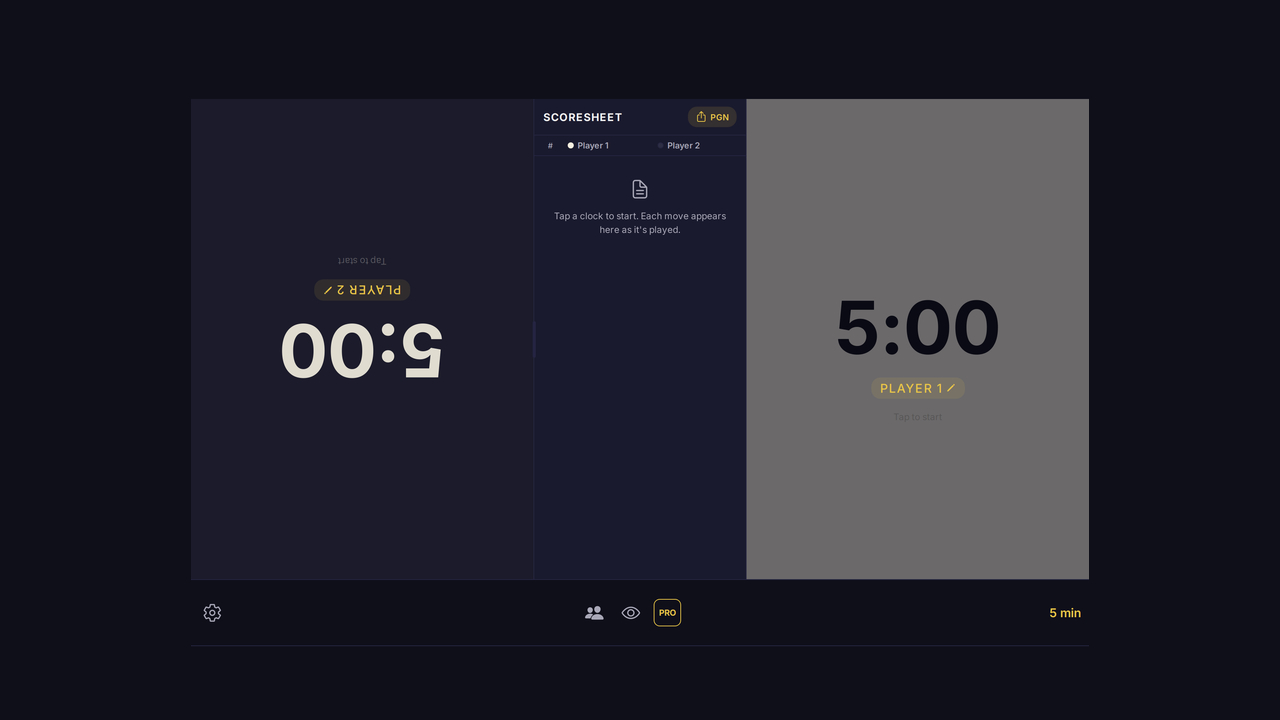
On iPad in landscape (and on Pro Max-class phones in landscape), a centre panel between the clocks shows a two-column White/Black scoresheet that fills in as each player taps to switch. Tap any cell to edit the move notation inline — the cell expands without covering the clocks, and quick-symbol buttons for capture (x), check (+), checkmate (#), castling (O-O), and promotion (=Q) speed up entry. After each move, a tap-to-record notation pad also appears in the mover’s clock zone — chess-piece keys, files, ranks, castling, and symbols — so moves can be recorded without a keyboard on iPhone and iPad alike. Prefer not to record moves? Turn the pad off with the Move Notation switch in settings. Drag the panel's left edge to resize it between 220 and 480 points wide, and your preferred width is remembered next session. When the game ends, tap the share button on the scoresheet to copy a fully-formed PGN to the clipboard or send it via the system share sheet, headers and all.
Move analytics & clock replay Pro
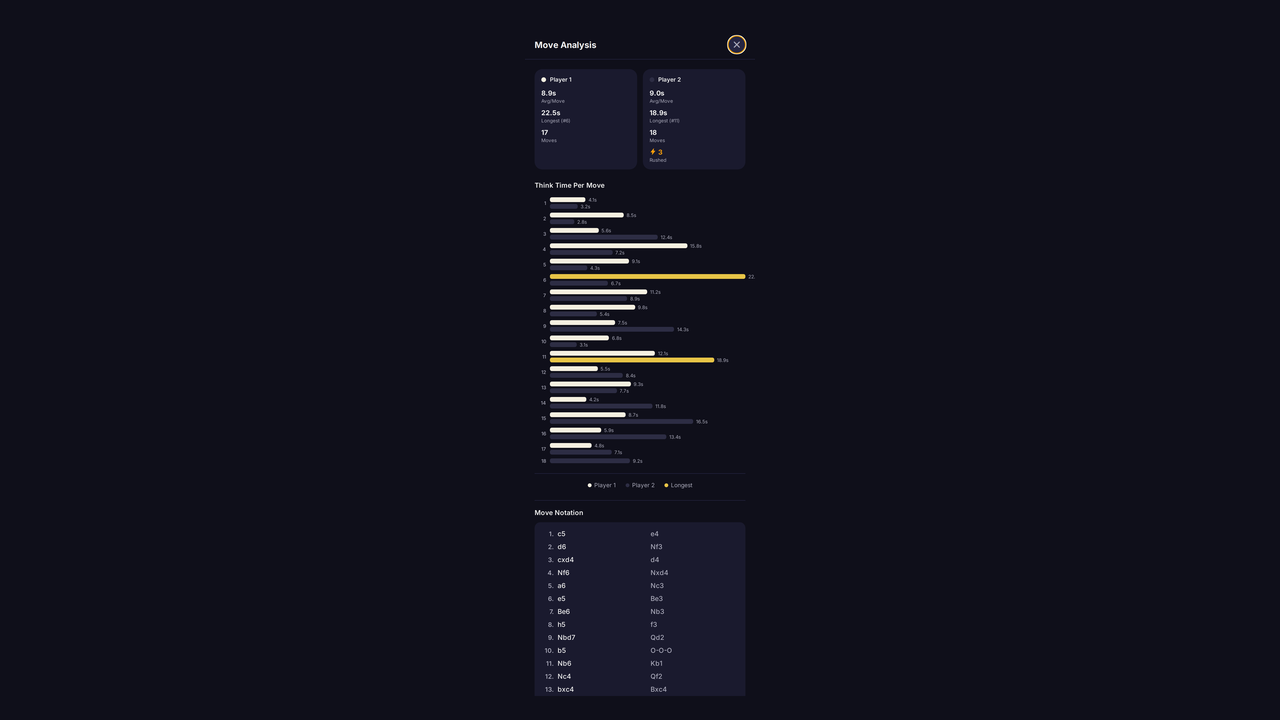
Every move is silently timestamped during play, so when the game finishes you get two extra buttons in the control bar. The chart icon opens move analytics: a per-move bar chart for each player, average think time, longest think, and a count of rushed moves (significantly faster than your own average). The play-circle icon opens clock replay: a full-screen scrubber that walks through both clocks at every move, with colour-coded markers for normal pace (green), time pressure (amber), and flagged time (red). Tap play to auto-advance at 2x, 5x, or 10x speed, or drag the timeline to jump anywhere. Together they turn each finished game into a brief post-mortem you can learn from.